
Deploy apps from Antigravity - setup guide
This guide shows how to connect AppDeploy to Antigravity so you can deploy apps from your agent chat and get a live URL back.
Follow the steps below to set it up once, then deploy whenever you’re ready, without leaving Antigravity.
These steps cover the Antigravity app. Antigravity IDE uses the same configuration and OAuth flow, with a different path to its MCP settings.
Step-by-step Instructions
In the Antigravity app, open Customizations in the sidebar and select Installed. Scroll to MCP Servers. Click Copy Config File Path, then open that file in a text editor. The global file is usually
~/.gemini/config/mcp_config.json.In Antigravity IDE, click the three dots in the Agent pane, then select MCP Servers, Manage MCP Servers, and View raw config.
Add the AppDeploy entry below to
mcpServersin yourmcp_config.jsonand save the file. Keep any other server entries.If you already have an AppDeploy entry that uses
commandandargs, replace that entry with this one.{ "mcpServers": { "AppDeploy": { "serverUrl": "https://api-v2.appdeploy.ai/mcp" } } }Restart the Antigravity app to load the saved configuration. Return to Customizations, select Installed, and scroll to MCP Servers.
In Antigravity IDE, open Agent settings with Cmd + , on macOS or Ctrl + , on Windows and Linux. Select Customizations, then click Refresh to load the saved configuration.
Click Authenticate next to AppDeploy.
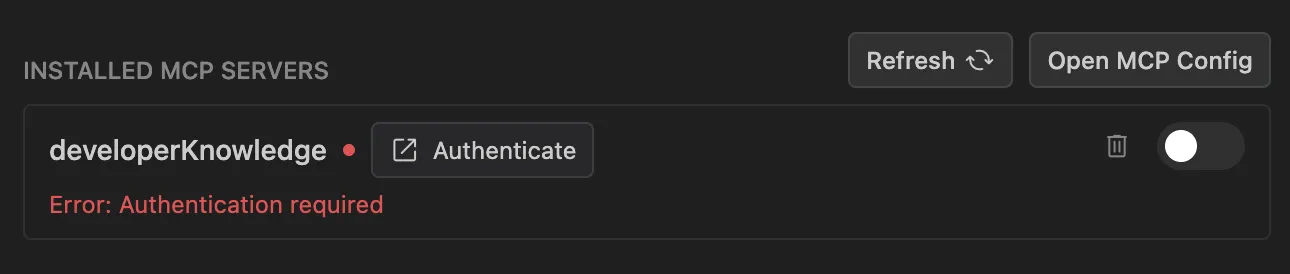
The OAuth screenshots below are from Google’s documentation and show an example server. Select AppDeploy in your settings.
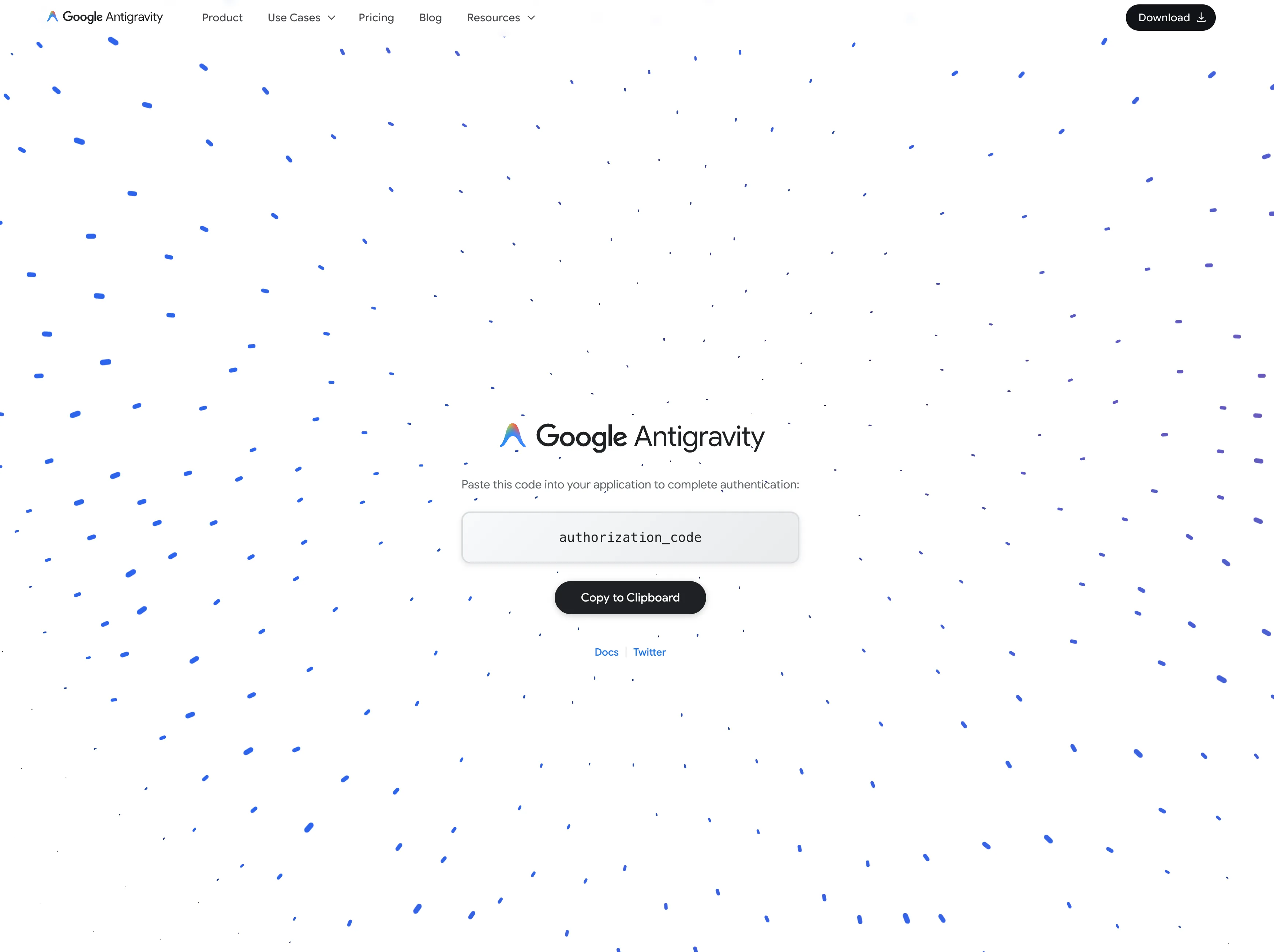
Complete the AppDeploy sign-in flow in your browser. Select Google, Apple, X, or Email. When the Google Antigravity callback page opens, click Copy to Clipboard to copy the authorization code.
Return to the MCP server list in Antigravity. Paste the code into the authorization code field next to AppDeploy, then click Submit.
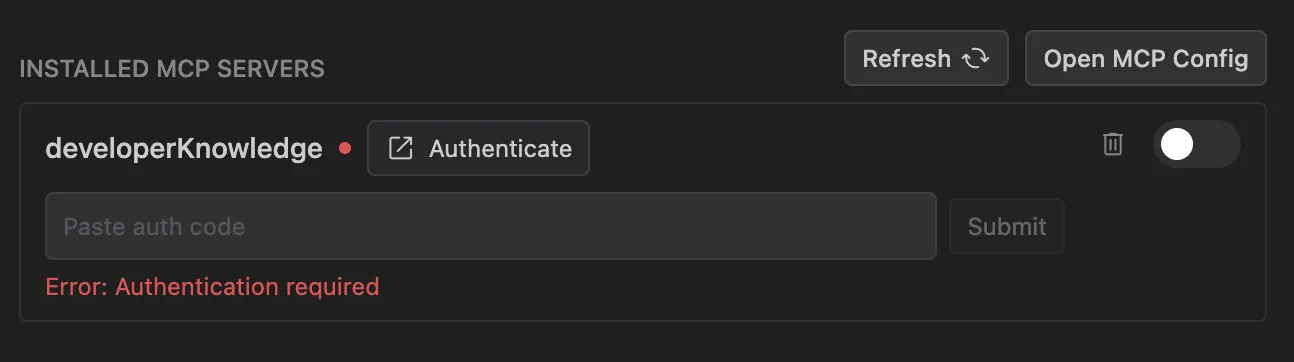
AppDeploy reconnects automatically after authentication. Check that its tools are available before you start.
Go to the agent chat and describe your app. For example:
“Build a Hello Antigravity webpage with a global visitor counter and deploy it with AppDeploy.”
Need Help?
If you encounter any issues, check our troubleshooting guide or contact us at support@appdeploy.ai.